

Auto Assembly divides a piping system into fabrication assemblies for you. It works on your selection, or on everything in the current view if nothing is selected. The results depend on a handful of settings, and a few of them behave in ways that surprise people the first time. This article explains what each setting does.
Open Auto Assembly
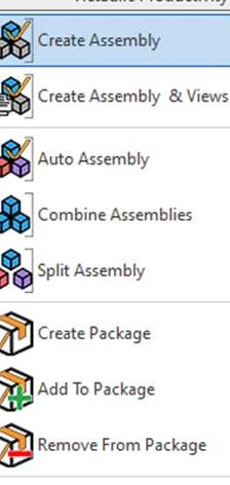
Auto Assembly is in the Create Assembly dropdown on the Victaulic Tools ribbon, along with Create Assembly, Create Assembly & Views, Combine Assemblies, and Split Assembly.
The settings
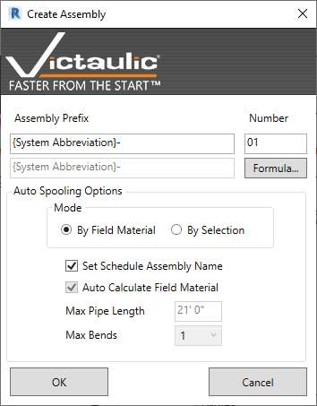
- Assembly Prefix and Number set the name of each spool. Click Formula to build the prefix from project data, for example the system abbreviation.
- Mode decides where assemblies are cut. The two modes are covered below.
- Set Schedule Assembly Name writes the spool name into the Schedule Assembly Name shared parameter.
- Max Pipe Length and Max Bends limit how much pipe and how many elbows go into one assembly.
Mode 1: By Field Material
In this mode, assemblies are created between predetermined field material. Spools end where you have marked components as Field Material.
- Use Toggle Field Material to click the components that should be field-installed. Each click turns the Vic_Field Material parameter on or off. A visibility filter for that parameter makes the marked parts easy to see.
- Select the part of the model you want to spool, or select nothing to use the whole view.
- Run Auto Assembly, set the prefix, choose By Field Material, and click OK.
If spools end in the wrong places, check the field material marks first.
Mode 2: By Parameters
In this mode, you set the limits yourself. Choose the mode, set the prefix, adjust Max Pipe Length and Max Bends, and click OK.
Why the prefix formula shows as text
Prefix formulas do not resolve until the assembly exists. Seeing the formula text in the dialog is normal, and the real name appears after the assemblies are created.
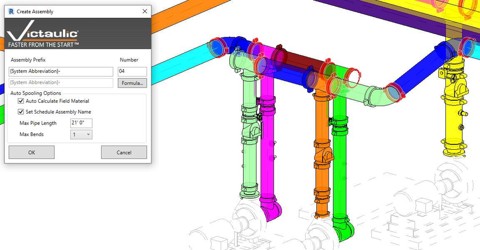
Adjusting the result
- Combine Assemblies merges the assemblies in your selection into one and keeps the parameter values of the chosen assembly. Loose items in the selection are added to the assembly.
- Split Assembly Lets you move selected items out of an assembly into another one, so you do not need to disassemble and reassemble.
- If you rename an assembly yourself, update the Schedule Assembly Name parameter afterward with Project Maintenance → Parameters. See also Newly Created Assemblies Are Renaming Old Assemblies.