

Check Region, Content Center, and Updates
A sprinkler head is missing from the ribbon, or the size you need is not in the list. The part usually exists. Victaulic Tools for Revit (VTFR) just is not showing it yet. Work through these steps in order.
Step 1: Set the right region
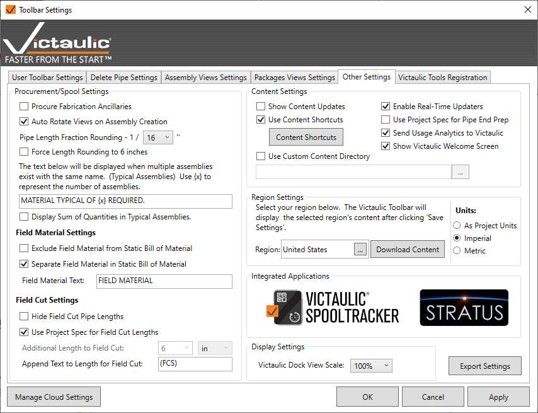
Different regions use different pipe sizes, and the toolbar changes its content folders to match. A wrong region can hide sizes you expect to see.
- Open Toolbar Settings and select the Other Settings
- Under Region Settings, choose your region: United States, Europe, or United Kingdom.
- Choose your units: As Project Units, Imperial, or Metric.
- Click Download Content, then OK.
Step 2: Search Content Center
The ribbon dropdowns do not list every family. Content Center searches the full online library.
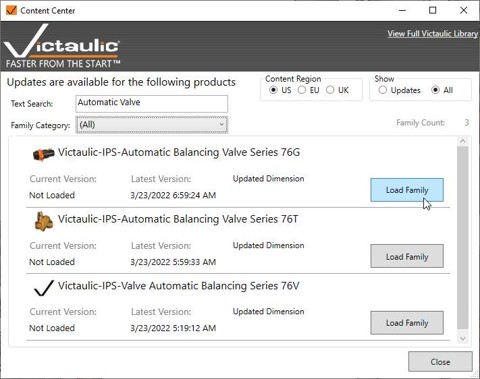
- On the Components panel, click Content Center.
- Type the part name or number in Text Search.
- Check the Content Region (US, EU, or UK) and set Show to All.
- Click Load Family next to the item you need.
Step 3: Update your content
Click Update Available to download the latest product ribbons. Changes appear after you restart Revit. In Content Center, setting Show to Updates lists families that are out of date so you can update them.

Step 4: Check which product ribbons are visible
Click Content Visibility to show or hide product ribbons such as IPS, AGS, and stainless steel. Choosing a fitting from a ribbon loads its family into the project if it is not there yet. Existing families are not overwritten.

Step 5: Look it up in the Victaulic Software & Content Library
If the family is not in Revit, search the online library. It holds Victaulic content files for many design platforms, including a package for Autodesk Revit MEP. It is a website, so you can use it from any browser, with or without Revit open.
- Open the Victaulic Software & Content Library.
- Scroll to Autodesk – Revit MEP and click the View Files arrow to the right of the name. The panel opens with a search box and a list of modules. The arrow changes to Hide Files once the panel is open.
- If you know the style number, type it in the Search box and press Enter or click Search. For example, search for 177N to find that coupling.
- If you do not know the style number but know the product group, click the plus (+) sign to the left of a module name to list every product in it. The modules include aluminum, AWWA, copper, and several fire protection groups (FP, FP_IGS, FP_Installation-Ready, and FP_Sprinklers).
- Click Download next to a module to get only that module, or Download Full Package to get all Victaulic Revit MEP content. Either one downloads as a zip file, so open the zip to see the files inside.
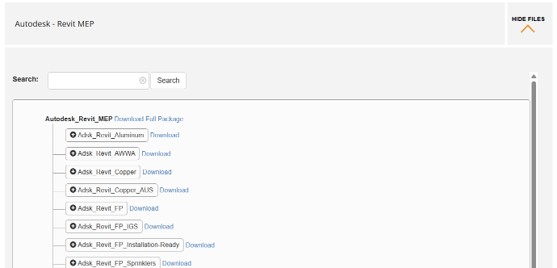
To see everything a package contains before you download it, click the Software Inclusion Report link next to Download Full Package. It opens a PDF list of the available products.
Our families are free to download even though you do not have VTFR license.
For more on searching the library, see the existing FAQ entry How do I search for a specific piece of content on Victaulic’s Software Content Website?
Step 6: Check the product page
Some families are also published as downloads on the product page. For example, Revit families for the FireLock™ FL-QR sprinklers V2762 and V2763 are on the FireLock FL-QR sprinklers page. Download the file, then load it in Revit with Insert > Load Family.
Still missing?
If the content you need is not in the library, or a Victaulic file has a problem, submit the Software Content Support request form. For questions about the Revit tools themselves, contact routingsoftware@victaulic.com. In either case, include the part number, your region and units settings, and your Revit version.