

Revit Yes/No parameters have three states, not two: Yes, No, and unspecified. Many Victaulic parameters, such as Vic_Field Material and Vic_Field Cut, are Yes/No parameters, and any element that has never been set to Yes or No holds the unspecified value. Formulas and schedule logic cannot use an unspecified value. Project Maintenance has a one-step fix.
When this applies
- A schedule formula or filter that uses a Victaulic Yes/No parameter returns nothing or the wrong rows.
- Some elements seem to be skipped, even though they look the same as the rest.
Other causes are possible, so treat these as signs, not proof.
Set unspecified values to No
- On the Victaulic Tools ribbon, click Project Maintenance.
- Open the Parameters
- Under Reset “Unspecified” Values to False, check Field Material, Field Cut, or both. To fix another Yes/No parameter, check Custom Parameter and pick it from the list.
- Click OK
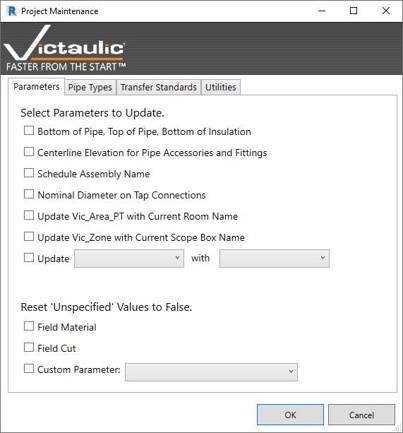
All unspecified values for the parameters you checked are set to False (No), so formulas in your schedules can use them. Elements that were already set to Yes stay Yes.
If Victaulic parameters are missing or not associated with the right categories
Victaulic Tools for Revit needs several project parameters, and those parameters must be associated with certain categories of families. If something is missing or has been changed, use the Utilities tab.
- In Project Maintenance, open the Utilities
- Check Reset Victaulic Parameters.
- Click OK.
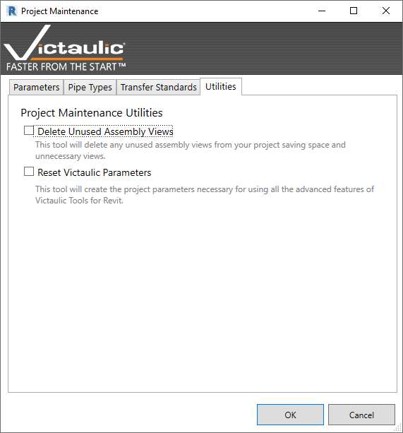
This sets all the associations of Victaulic parameters to their default and correct values. If you changed those associations on purpose, run it on a copy of the project first.
Also on the Utilities tab
Delete Unused Assembly Views removes views that belong to assemblies but were not placed on the assembly sheet. These extra views build up as you create spool sheets, so run it before you hand off or archive a project.
One more thing worth knowing
If you change the name of an assembly yourself, its Schedule Assembly Name parameter is not updated automatically. Check Schedule Assembly Name on the Parameters tab to update it.