

You downloaded For example, Victaulic fire protection content for Revit and looked for a .rte template or .rvt project file. There is none, only a file Windows cannot identify. Nothing is broken. In Revit, pipe types are system families, so they cannot be loaded the way a fitting family can. Victaulic Tools for Revit (VTFR) installs them for you.
Step 1: Open Project Maintenance
On the Victaulic Tools ribbon, click Project Maintenance.

Step 2: Install the pipe types
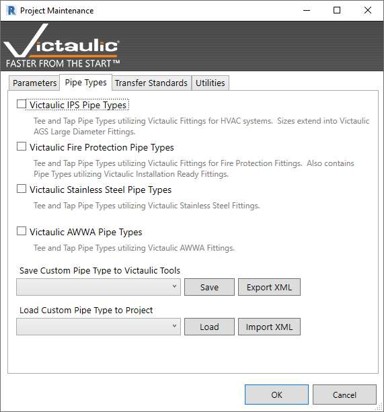
- Select the Pipe Types
- Check Victaulic Fire Protection Pipe Types. The dialog describes these as tee and tap pipe types that use Victaulic fittings for fire protection, including pipe types for Installation-Ready™ fittings.
- Click Ok.
Installing through this tool avoids the duplicate families that can appear when pipe types are copied and pasted between projects.
Step 3: Add the fire protection fittings
Fittings and valves come from the Components panel. Click Content Visibility, check the Victaulic FP product ribbon, and pick a fitting. Its family loads into the project the first time you select it. If a size or part is missing, see our article on finding Victaulic families.
Step 4: Confirm the pipe types are in your project
Select a pipe, or start the Pipe command, and open the Type Selector. The Victaulic fire protection pipe types should be listed.
Moving a pipe type to another computer or project
The bottom of the Pipe Types tab has two sections:
- Save Custom Pipe Type to Victaulic Tools: use Save to keep a pipe type for reuse, or Export XML to create an instruction file.
- Load Custom Pipe Type to Project: use Load for a saved pipe type, or Import XML to bring in an XML file from another installation of VTFR.
If you receive a pipe type file that shows no extension, it may be an XML export. In File Explorer, turn on View > Show > File name extensions to check, then use Import XML.