

The Project Specification Tool stores your project’s standards (field cut lengths, hanger spacing, pipe lengths, and insulation) so that other Victaulic tools can read them instead of asking you each time. If your hangers, splits, or BOM lengths do not follow your standards, this tool, and the switches in each tool that read it, are the place to look.
What it stores
The tool saves data by piping system and pipe type. It has four tabs:
- Field Cut: exact lengths added to pipe where you are unsure of the final measurement. The Procurement Tool and the Assembly Manager use these when they build Bills of Material.
- Hangers: rod diameter, start distance, and repeat distance by pipe size. The Hanger Placement Tool uses them when placing hangers.
- End Prep and Length: the default pipe end prep and the minimum and maximum pipe lengths. Pipe Tools uses these when splitting pipe, and the Pipe End Prep parameter can be filled in as you route.
- Insulation: thickness and material by pipe system and pipe type, used by the Insulation Tool.
Open it and fill it in
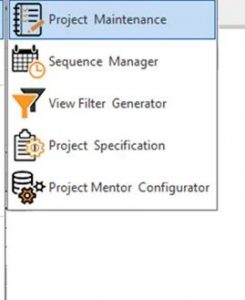
- Open Project Specification from the Project Maintenance dropdown on the Victaulic Tools ribbon.
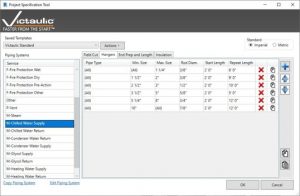
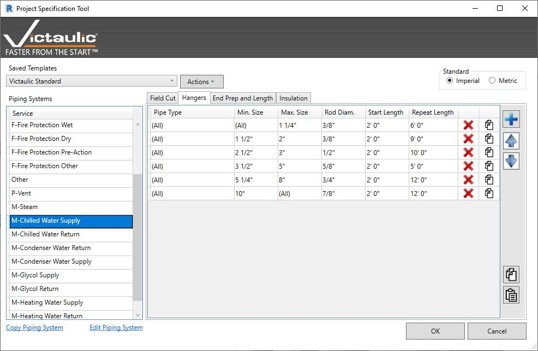
- Pick a Saved Template, or start from the Victaulic Standard template, and choose Imperial or Metric.
- Select a piping system in the list on the left. Use Copy Piping System to start one system from another.
- Open a tab and fill in the table. On the Hangers tab, for example, each row has a pipe type, a minimum and maximum size, a rod diameter, a start length, and a repeat length.
- Click OK.
Why your tools may still ignore it
Filling in the tool is only half of the setup. Each tool that reads the Project Specification has its own switch for using it:
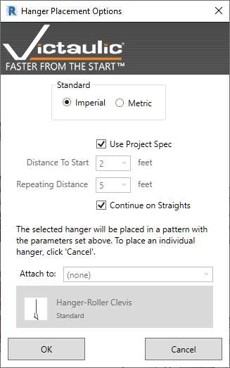
- Hanger Placement Options: check Use Project Spec. When it is checked, the distance boxes are greyed out because the values come from the specification.
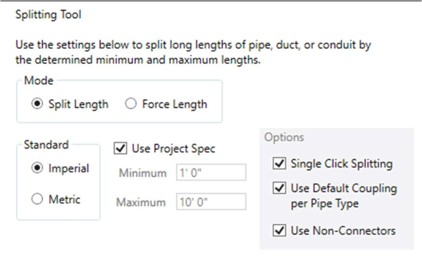
- Pipe Tools splitting: check Use Project Spec so the minimum and maximum lengths come from the End Prep and Length tab.
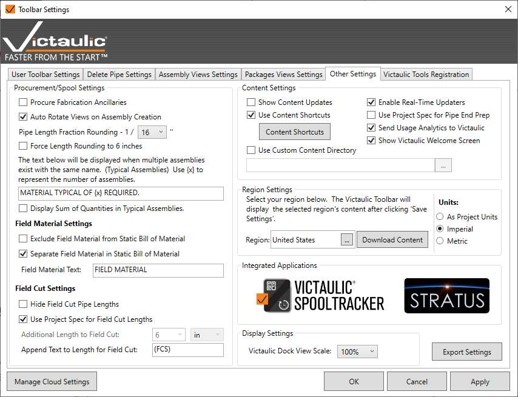
- Toolbar Settings → Other Settings: Use Project Spec for Field Cut Lengths controls the Field Cut tab, and Use Project Spec for Pipe End Prep controls the default end prep.
What you will see in the BOM
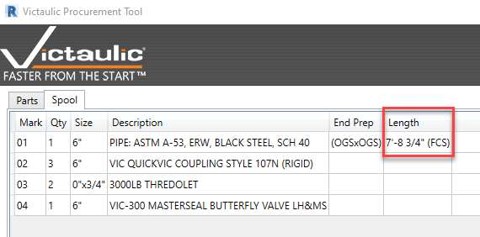
Field cut allowances show up in the spool BOM. In the Procurement Tool’s Spool tab, the pipe length includes the extra length and the text from Append Text to Length for Field Cut (by default, “(FCS)”). To hide field cut lengths in the BOM, check Hide Field Cut Pipe Lengths in Other Settings.
For what the Vic_Field Cut and Vic_Field Material parameters do, see the existing FAQ entry Can you explain the uses for the Vic_Field Material, Vic_Field Cut, and Vic_Do Not Schedule checkbox parameters?