

Victaulic Tools for Revit (VTFR) does not work entirely offline. While you work, it reaches out over the internet for your license status, your saved settings, pipe types, and Victaulic families. If a company firewall, proxy, or web filter blocks that traffic, the symptoms can look like unrelated bugs. This article shows how to tell in about five minutes, and what to ask your IT team to change.
Symptoms that point to a blocked connection
• The Register Victaulic Tools button comes back after you restart Revit, even though you logged in and your account shows an active license.
• A window such as Columns in the Procurement Tool shows “Error on fetching data”.
• Families, content updates, or pipe types will not download.
• Saved templates in Victaulic Cloud Settings will not load.
• A Victaulic login fails on the first try, then works on the second.
Any one of these can have other causes. Together, they make the network the first thing to rule out.
Why it happens
The VTFR user manual states that VTFR needs web access to reach families, settings, pipe types, and licensing, and that some web filters block it. The two domains users need to reach are victaulic.com and victaulicsoftware.com.
Step 1: Test the connection from the affected computer
Run these checks on the same computer, and the same network or VPN, where Revit runs.
1. Open a web browser.
2. Open each of these links: Version check page, Sample family download (Style 77 Flex coupling), and Settings service page.
3. Note what happens. A page that loads or a file that downloads means that part of the connection is open. A block page, security warning, certificate error, or timeout means the traffic is being filtered.
The second link downloads a sample Revit family, so it also tests whether file downloads from the domain are allowed.
Step 2: Ask IT to allow the Victaulic domains
Send your IT team this request:
Please allow outbound HTTPS access from the computers running Revit to victaulic.com and victaulicsoftware.com, including subdomains. Victaulic Tools for Revit needs these for licensing, settings, pipe types, and content downloads.
Ask them to check every layer that filters web traffic: the firewall, any proxy or secure web gateway, and the web protection module in endpoint security software. After they make a change, restart Revit and run the three links again.
Step 3: Register again and confirm
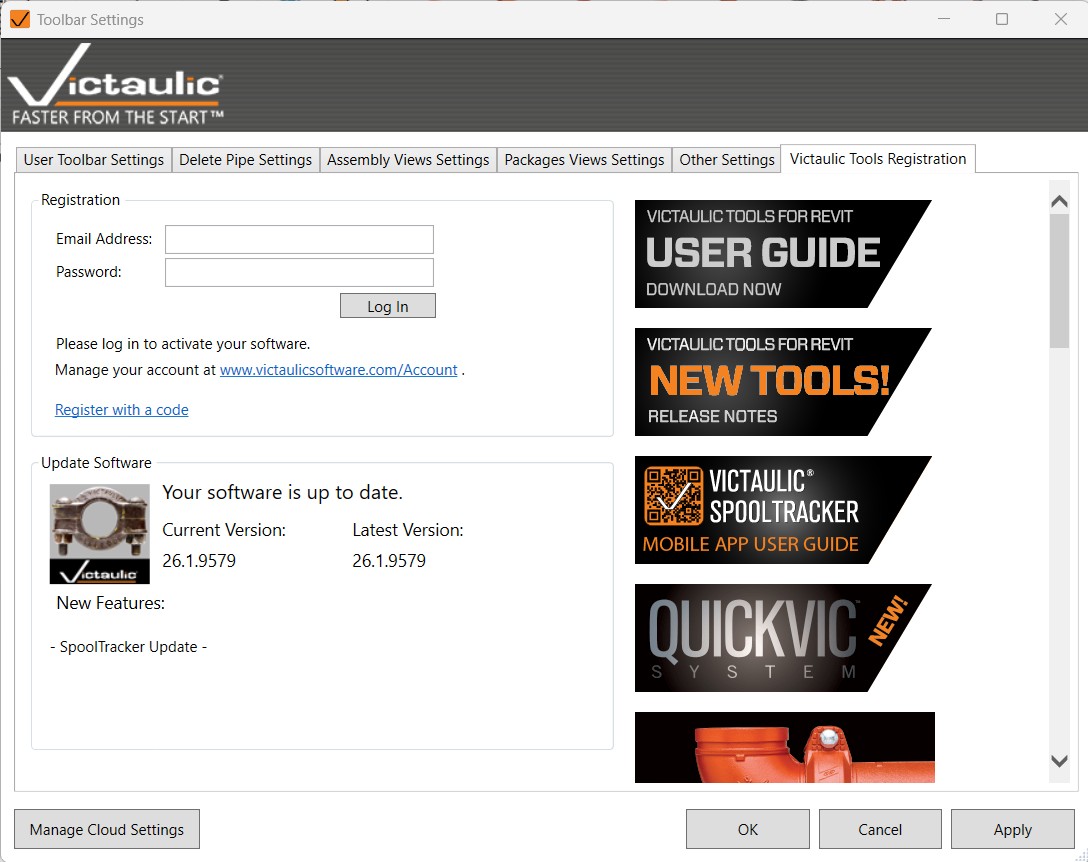
- In Revit, open Toolbar Settings and select the Victaulic Tools Registration
- Enter the email address and password from your Victaulic Software store account and click Log In.
- Note the Current Version and Latest Version shown under Update Software. Support will ask for them if the problem continues.
Restart Revit. Once the software is licensed, the Register Victaulic Tools button no longer appears in the ribbon.
If the tests pass and the problem continues
Contact support through the Contact Victaulic button on the ribbon or at routingsoftware@victaulic.com.
Include:
- Your Revit version and the VTFR version from the Registration tab.
- A screenshot of the exact message.
- The email address on your Victaulic Software store account.