

You move a pipe run, and the hangers stay where they were, holding nothing. With Revit family hangers, there is no built-in link between a hanger and the pipe it supports, so Revit does not move them for you. Two Victaulic Tools for Revit (VTFR) tools restore that link.
These tools are for family hangers. Hangers placed with the Fabrication Hangers tool go on MEP Fabrication pipework and are placed with their own tool.
Fix everything at once: Update Hangers
- After you move pipe or change its parameters, open the Fabrication Hangers dropdown on the ribbon and click Update Hangers.
- If some hangers have no host pipe data, a notification lists your options: Select Them, Detect and add Host Pipe Data to them, or Ignore Them. Detecting and adding data can take longer when the model has many hangers and pipes.
- The tool moves the hangers to match the new pipe location.

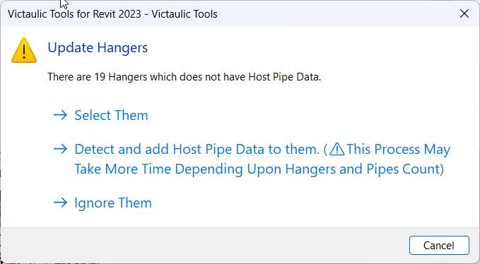
Update Hangers also refreshes these parameters from the host pipe:
- Insulation Thickness
- Vic_BagTag
- Vic_Zone, Vic_System_PT, and Vic_Area_PT
- Vic_Sequence
- Pipe Size and Nominal Diameter
- CL Elevation
Fix a few hangers by hand: Hanger Snap Tool
- Select the misplaced hangers.
- Click Hanger Snap Tool.
- Click the pipe length where the hangers belong.
- The hangers snap to the closest point along that pipe.
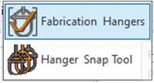
The Hanger Snap Tool is also the right choice when Update Hangers does not recognize a hanger, or when you want to fine-tune where one sits.