
Flip to Vic switches the pipe joining method and material of part of a Revit model to a Victaulic pipe type. It saves you from deleting and re-routing pipe by hand. This article explains how to run it, what it does and does not touch, and what to do when some parts will not flip.
What Flip to Vic does, and what it does not
- It changes the pipe type, fittings, and accessories in your selection.
- It does not move pipe or equipment. If a part cannot be flipped cleanly, the tool disconnects it instead of forcing it into place.
- Because of that, expect to reconnect a few parts afterward. The Any Connect tool can move and reconnect components.
Before you start
- Load the Victaulic pipe type you want to flip to. In Project Maintenance, the Pipe Types tab installs them (see our article on installing Victaulic pipe types).
- Save the model first, so you can go back if the result is not what you wanted.
- Work in a 3D view so you can see everything you are selecting.
Run Flip to Vic
- Select the pipes, fittings, and accessories you want to convert.
- Click Flip to Vic on the Modify
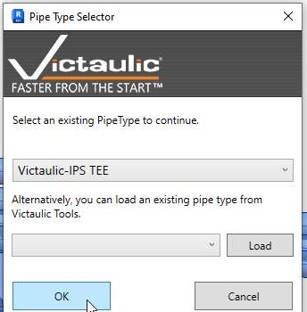
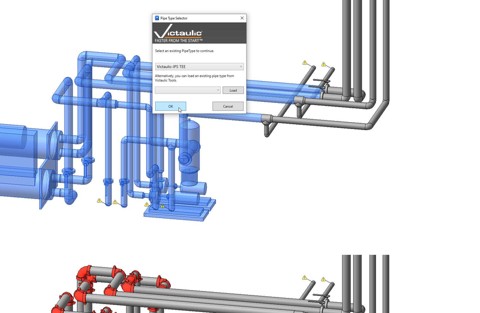
- In the Pipe Type Selector window, pick a loaded Victaulic pipe type from the list. You can also load an existing pipe type from Victaulic Tools with the Load
- Click OK
Map accessories
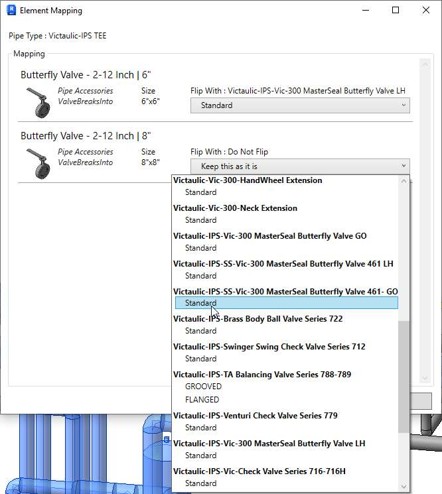
If your selection includes accessories such as valves, an Element Mapping window opens. It lists each accessory by type and size, and you choose what to do with it:
- Pick the Victaulic family to Flip With, or
- Choose Do Not Flip to Keep this as it is.
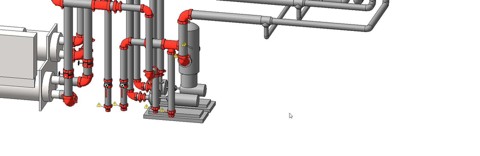
Here is a model before and after the flip:
If some parts did not flip
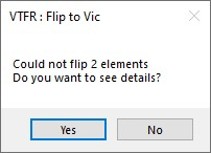
When the tool cannot flip every part, a message asks whether you want to see details. Click Yes.
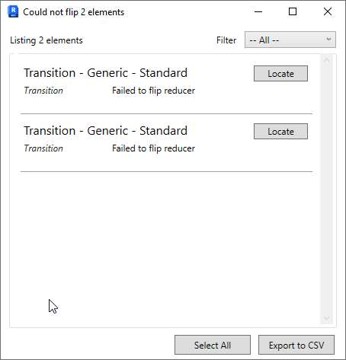
A list opens with every part that failed and the reason. In the manual’s example, two reducers listed as “Transition – Generic – Standard” show “Failed to flip reducer”. From the list you can:
- Click Locate next to a part to find it in the model.
- Use Filter to narrow the list.
- Click Select All to select every part in the list.
- Click Export to CSV to save the Revit IDs of the failed parts, for example to send to a colleague.
Fix each one by locating it, replacing it with the right Victaulic part, and reconnecting it.